SharePoint 2013 – "This page can’t be displayed" when clicking on an app
I have just created an App Catalog in SharePoint 2013 but after adding an app from the SharePoint store I tried to configure it and received the following message:
This page can’t be displayed
It turned out that I had neglected to configure DNS for the app domain. Here the steps required to configure DNS for the app domain:
Step 1 – Create the zone
- In DNS Manager, right-click Forward Lookup Zones, and then click New Zone…
- In the New Zone Wizard click Next
- Accept the default of Primary zone and then Next
- Select the appropriate replication method for your environment (I always use the default option: To all DNS servers in this domain). Click Next
- Enter the name for the new zone, such as apps.yourdomain.local and click Next
- Select the appropriate type of dynamic updates for your environment (I always use the default option: Allow only secure dynamic updates). Click Next.
- Click Finish
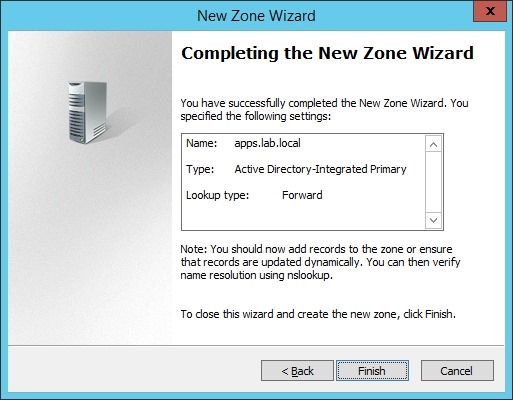
Step 2 – Create CNAME record (*.apps.yourdomain.local)
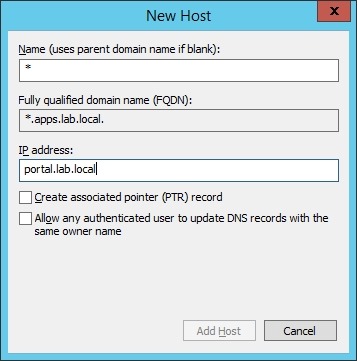
- In DNS Manager, right-click the new zone and choose New Alias (CNAME)…
- In the Alias Name box enter “*” and in the FQDN for target host enter the address for the sharepoint server. Click OK
One complete I could ping any host in the new app domain:

![[BlogBookmark]](http://www.adventuresinsharepoint.co.uk/wp-content/plugins/bookmarkify/blogbookmark.png)
![[Blogsvine]](http://www.adventuresinsharepoint.co.uk/wp-content/plugins/bookmarkify/blogsvine.png)
![[del.icio.us]](http://www.adventuresinsharepoint.co.uk/wp-content/plugins/bookmarkify/delicious.png)
![[Digg]](http://www.adventuresinsharepoint.co.uk/wp-content/plugins/bookmarkify/digg.png)
![[Facebook]](http://www.adventuresinsharepoint.co.uk/wp-content/plugins/bookmarkify/facebook.png)
![[Furl]](http://www.adventuresinsharepoint.co.uk/wp-content/plugins/bookmarkify/furl.png)
![[Google]](http://www.adventuresinsharepoint.co.uk/wp-content/plugins/bookmarkify/google.png)
![[LinkedIn]](http://www.adventuresinsharepoint.co.uk/wp-content/plugins/bookmarkify/linkedin.png)
![[MySpace]](http://www.adventuresinsharepoint.co.uk/wp-content/plugins/bookmarkify/myspace.png)
![[Reddit]](http://www.adventuresinsharepoint.co.uk/wp-content/plugins/bookmarkify/reddit.png)
![[Slashdot]](http://www.adventuresinsharepoint.co.uk/wp-content/plugins/bookmarkify/slashdot.png)
![[StumbleUpon]](http://www.adventuresinsharepoint.co.uk/wp-content/plugins/bookmarkify/stumbleupon.png)
![[Twitter]](http://www.adventuresinsharepoint.co.uk/wp-content/plugins/bookmarkify/twitter.png)
![[Windows Live]](http://www.adventuresinsharepoint.co.uk/wp-content/plugins/bookmarkify/windowslive.png)
![[Yahoo!]](http://www.adventuresinsharepoint.co.uk/wp-content/plugins/bookmarkify/yahoo.png)
![[Email]](http://www.adventuresinsharepoint.co.uk/wp-content/plugins/bookmarkify/email.png)
 Loading ...
Hi Thank you for the blog. Done all the steps above but still having the same error and Fiddler shows connection refused so any idea what could be wrong?